ZPL prints accented characters wrong
Accented characters print wrong in ZPL when the bytes you send and the character set the printer expects don't match. Save the ZPL as UTF-8, put ^CI28 after ^XA, and use a font that has the glyphs; ^CI28 alone doesn't add characters a font lacks.
已更新 2026-10-20 · Renders made with the OpenZPL engine
Open in the viewerWhat you see
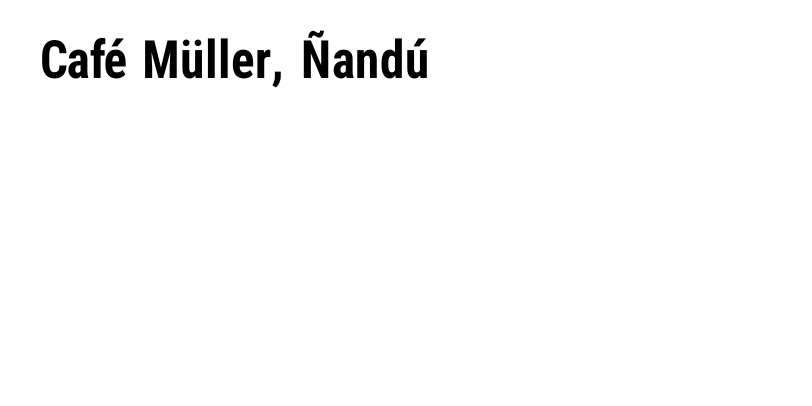
On the printer, Café Müller comes out as Café Müller, as Caf? M?ller, or with gaps where the accented letters should be. The rest of the label is fine.
Why it happens
A ZPL file is a stream of bytes. The printer turns those bytes into characters with the character set chosen by ^CI. The default, ^CI0, reads one byte per character. UTF-8, which almost every editor and programming language uses today, stores é as two bytes. Read one byte at a time, those two bytes become two wrong characters.
| What you send | Bytes for é | Printer at ^CI0 | Printer at ^CI28 |
|---|---|---|---|
| UTF-8 text (most editors, Python, Node) | C3 A9 | é | é |
| Windows-1252 / Latin-1 text | E9 | é | a gap or a replacement character |
So there are three possible causes, and the first column of the table tells them apart:
- UTF-8 bytes without
^CI28. The most common case: two wrong characters per accent. - Latin-1 bytes with
^CI28. The file was saved by an old system in Windows-1252, but the label declares UTF-8. The accented letters disappear. - The font has no glyph for the character. The encoding is right but the font can't draw it. This is the usual problem with Cyrillic, Greek, Arabic or CJK text.
The fix
Send UTF-8 and say so. Put ^CI28 once, right after ^XA, and keep it in every label of the file:
^XA
^CI28
^FO40,40^A0N,50,50^FDCafé Müller, Ñandú^FS
^XZ
If the ZPL comes from a database or an ERP export, check the encoding at the point where you write the file or the HTTP body. In Python, zpl.encode("utf-8"); in Node, a string body is sent as UTF-8 by fetch. If you can't change the encoding of the source, use the character set that matches it instead of ^CI28, for example ^CI27 for Windows-1252, and test it on the printer.
When the font is the problem
^CI28 decides how bytes become characters, not which characters a font can draw. The same label with Japanese text draws the Latin letters and leaves blanks for the rest:

^XA
^CI28
^FO40,40^A0N,50,50^FDTokyo 東京^FS
^XZ
On a Zebra printer the fix is a font that covers the script, downloaded to the printer and selected with ^A@ or mapped with ^CW. Which fonts are installed depends on the printer model and firmware, so check the printer's font list (^WD) before you design the label.
^CI28. Don't take a correct preview as proof that the printer will print it: add ^CI28 anyway.How to check
- Open the file in a hex viewer, or in the ZPL viewer, and look at the bytes of one accented letter:
C3 A9is UTF-8,E9is Latin-1. - Print one test label with a line of every accented character you use.
- If only some characters fail, it's the font; if all of them fail the same way, it's the encoding.
问题
Where does ^CI28 go in the label?
Right after ^XA, before the first field. It stays in effect until another ^CI, but put it in every label of a file so a label sent on its own still works.
Do I need ^FH to print accents?
No. ^FH lets you write bytes as hex, for example _C3_A9 for é in UTF-8. It helps when your system can't send the character itself, but with UTF-8 and ^CI28 you can write é directly.