QR codes in ZPL with ^BQ
To print a QR code in ZPL, use ^BQN,2,{magnification} followed by ^FDQA, and your data, for example ^FO50,50^BQN,2,6^FDQA,https://openzpl.com^FS. The magnification (1 to 10) sets the size of each module in dots, and the two letters before the comma choose the error correction level and the input mode.
Updated 2026-10-20 · Renders made with the OpenZPL engine
Open in the viewerGenerator
4 × 2 in label at 203 dpi. A preview shows how the printer draws the code; confirm with a scanner before printing a run.
The ^BQ command
^BQ takes the orientation, the QR model and the magnification. The data goes in ^FD and starts with two characters and a comma: the error correction level and the input mode. QA, means error correction Q and automatic mode, which is right for almost every URL or text.
| Parameter | What it does | Values |
|---|---|---|
^BQ a | Orientation | N only; other values are ignored by Zebra printers |
^BQ b | QR model | 2 (enhanced, the one scanners expect); 1 is the original |
^BQ c | Magnification: dots per module | 1 to 10; Zebra's default depends on the density |
^FD 1st letter | Error correction | H 30%, Q 25%, M 15%, L 7% of the code can be damaged |
^FD 2nd letter | Input mode | A automatic; M manual, followed by a character mode such as A or N |
Magnification and size in dots
A QR code is a square of modules, and each module is as many dots wide as the magnification. https://openzpl.com with error correction Q fits in a 25 × 25 module code (version 2). Rendered by the OpenZPL engine at 203 dpi it measures:
| Magnification | Size in dots | Size at 203 dpi |
|---|---|---|
| 2 | 50 × 50 | 6.3 mm |
| 4 | 100 × 100 | 12.5 mm |
| 6 | 150 × 150 | 18.8 mm |
| 10 | 250 × 250 | 31.3 mm |
Longer data or a higher error correction level needs more modules: the same URL with HA, grows to 29 × 29 modules, 174 dots at magnification 6. At 300 dpi each dot is smaller, so the same magnification prints a smaller code; see 203 vs 300 dpi.

^XA
^FO50,50^BQN,2,6
^FDQA,https://openzpl.com^FS
^FO250,90^A0N,30,30^FDScan to open^FS
^FO250,130^A0N,30,30^FDopenzpl.com^FS
^XZ
Valid and invalid data
The most common mistake is leaving out the QA, prefix. The printer then reads the first characters of your data as settings, and the code scans without them. Both codes below scan, but the one on the left gives ps://openzpl.com:
^FDhttps://… (prefix missing)
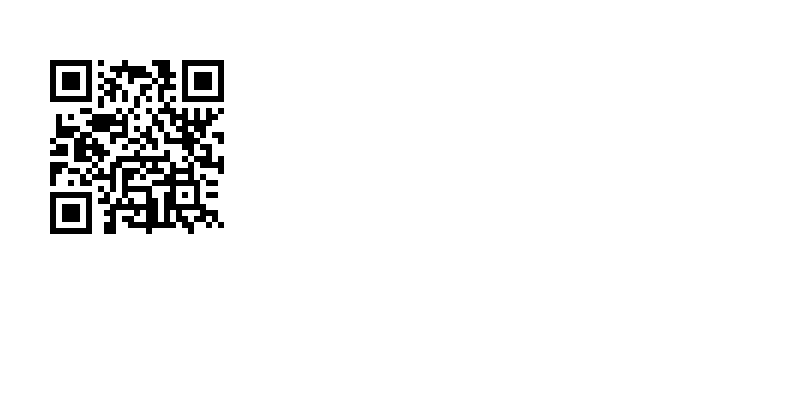
^XA
^FO50,50^BQN,2,6
^FDhttps://openzpl.com^FS
^XZ
^FDQA,https://… (correct)
^XA
^FO50,50^BQN,2,6
^FDQA,https://openzpl.com^FS
^FO250,90^A0N,30,30^FDScan to open^FS
^FO250,130^A0N,30,30^FDopenzpl.com^FS
^XZ
- URL or text:
^FDQA,then the data. One page covers both: a URL is just text the phone offers to open. - Manual mode with alphanumeric data:
^FDMM,Athen the data, for example^FDMM,AOZ-2026. - Characters outside ASCII (accents, other scripts): add
^CI28near^XAso the data is sent as UTF-8; see accented characters. ^and~start a ZPL command, so they can't appear in the data as they are; use^FHand hex escapes, see special characters in data.
Position: where the code starts
In the OpenZPL engine the top of the QR code lands below the ^FO position by the current ^BY bar height (10 dots by default, so ^FO50,50 draws the code from y = 60). After a linear barcode with ^BY3,2,120, the next QR code moved down 120 dots in our test. If a QR code appears lower than expected, put ^BY back to a height of 10 before ^BQ and check the result on your printer.
Check a barcode before printing a run
A preview shows how the printer will draw the code: bar widths, quiet zone and the human-readable line. It does not prove that every scanner reads it on your media. Print one label at the real density and scan it with the scanner your customer or carrier uses; for retail and logistics codes, a barcode verifier grades the print quality.
Questions
What size should a QR code be on a label?
Big enough for the scanning distance: at 203 dpi, magnification 4 to 6 (12 to 19 mm for a short URL) suits a phone at arm's length. Keep data short; every extra character adds modules.
Which error correction level should I use?
Q (QA,) is a good default for labels. Use H if the code may be scratched or partly covered, and M or L only to make a long payload fit.
Why does my QR code scan but miss the first characters?
The data has no QA, prefix, so the printer used them as settings. Start ^FD with QA,.